
Making Notebooklm Slide Decks Actually Editable: Three Practical Methods
Tired of frozen NotebookLM slides? Learn 3 proven methods to convert flattened images into editable PPTX files using Canva, Adobe Acrobat, and Vision AI.

I ran into a frustrating problem while working with NotebookLM’s slide deck feature. If you’ve watched my earlier breakdown on the 8 ways to use NotebookLM for slides, you know the tool generates surprisingly polished decks—powered by Nanobanana Pro’s strong visual foundation. But here’s the catch: every single slide is a flattened image. You can’t edit text, move elements, adjust colors, or fix typos. It’s beautiful but frozen.
After fighting with this limitation across multiple methods, I discovered three different approaches to unlock editability. Each has trade-offs. Let me walk you through what actually works.
The Problem: Why You Need This
When NotebookLM generates a slide deck, it’s optimized for presentation output, not creation workflows. You get PNGs or PDFs where text, images, charts, and layouts are all baked together as raster graphics. Try converting these with a basic online PDF-to-PPT tool? You’ll either get:
1. Format conversion only— the file becomes a .pptx, but slides are still images inside. Zero editability.
2. Parse errors— text gets scrambled, images distort, and formatting falls apart.
This becomes a real problem when you’re iterating with stakeholders, need to rebrand slides, or want to fix data visualization mistakes.
Method 1: Canva’s AI-Powered Image Analysis
Time investment: 10-15 minutes per deck
Cost: ¥35/month for each month
Best for: Quick edits, multiple decks
The workflow here is counterintuitive but effective:
convert PDF → PPT (as images) → upload back to Canva → use AI extraction.
Step-by-Step
1. Download your NotebookLM PDF and open Canva (canva.cn or canva.com)
2. Click + Create on the left, find Upload, and import your PDF
3. Once Canva loads it, click the download button (top right) and save as PPTX
- *This step seems redundant but necessary—you’re converting the container format*
4. Upload that PPTX back into Canva (create new project, upload the file)
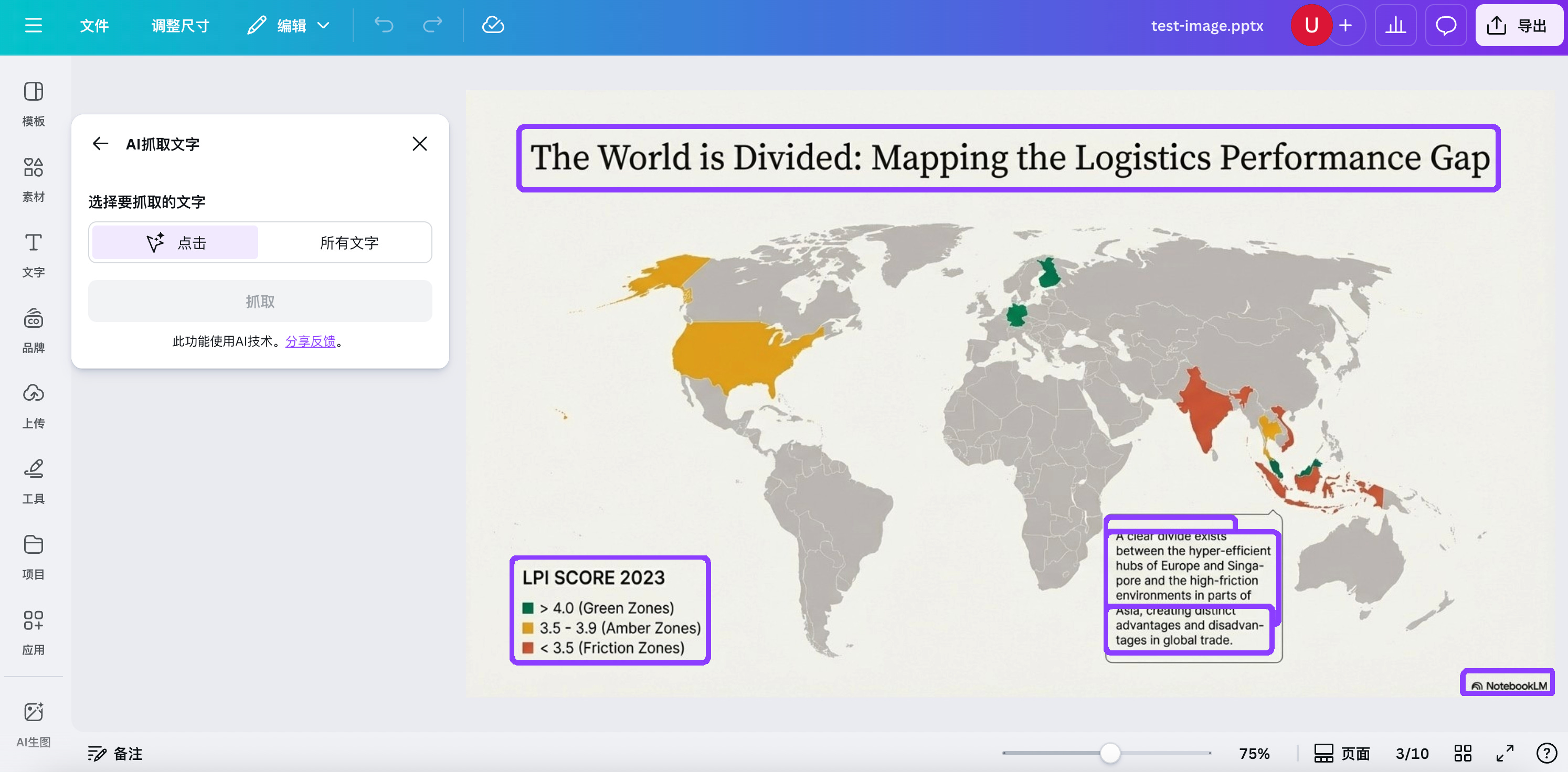
5. Select a slide you want to edit and open the Image Editor tool from the toolbar
6. In the left panel, find Magic Studio — this is where the AI lives
Magic Studio: Two Critical Functions
AI Extract Text — Canva scans the slide with vision AI and identifies all text blocks. You can then select extracted text and edit it as native text (not an image). The font and formatting shift slightly, but it’s editable.
AI Extract Subject — For image elements (charts, diagrams, photos), this isolates the main subject, letting you move, resize, or delete it independently from the background.
My Honest Take
This works surprisingly well for 80-85% of slide content. Text extraction is reliable. The main friction is that text blocks and complex background elements sometimes stay linked, especially in data visualizations where labels overlay charts. You’ll often need manual cleanup.
The paid features let you do more sophisticated image editing through AI image-gen, and AI extraction.
Method 2: Adobe Acrobat’s PDF Editor
Time investment: 5-10 minutes per deck
Cost: $12.99/month (Acrobat Pro Individual Standard)
Best for: Minimal changes, preserving original layout, directly edit PDF
This is the more direct approach: skip the PPT middleman and edit the PDF itself.
How to Use
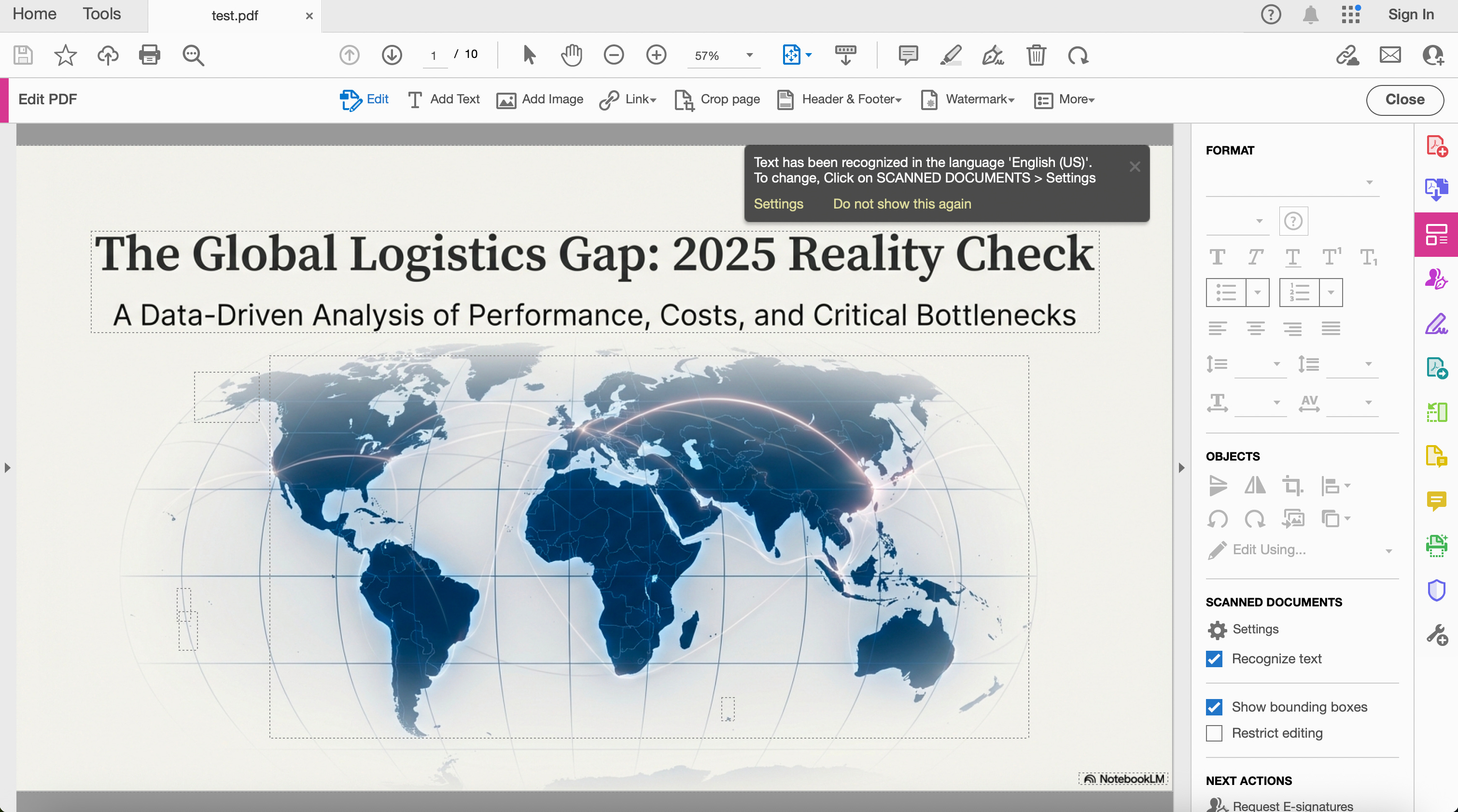
1. Open your NotebookLM PDF in Adobe Acrobat (desktop app or Chrome extension)
2. Click Edit PDF in the right sidebar
3. Acrobat runs optical character recognition (OCR) and object detection, parsing text and image elements
4. You can now edit text directly (font, size, position), move or delete images, and adjust layout
Why This Works
Adobe’s parsing is usually superior to browser-based tools. It handles complex layouts better and preserves more of the original design intent.
The Limitation
Sometimes Acrobat groups text + background image as a single locked object. You can’t decouple them. This is most common with slides that mix data visualization backgrounds with overlaid labels. But honestly, this approach resolves 90%+ of typical editing needs.
You don’t need the desktop app—the Chrome extension works fine if you’re comfortable with browser-based editing.
Method 3: Building Your Own Tool (The Developer Path)
Time investment: 0.5-1 hours initial build
Cost: Free (Google AI Studio, recommend Pro)
Best for: Custom workflows, full control, or if you process many decks
Here’s where it gets interesting. Methods 1 and 2 are leveraging existing tools’ document parsing. But if you’re comfortable with prompting and want complete control, you can build a custom extraction pipeline.
I used Google AI Studio with Vibe Coding to build something I called SlideReform. The workflow breaks down like this:
1. User uploads a PDF
2. Convert PDF → PPT (each slide stays as an image)
3. Use multimodal vision AI to identify and extract text blocks, images, charts, and formulas
4. Parse these elements while preserving spatial relationships and layout hierarchy
5. Output as editable PPTX
The Challenge
Decomposing complex visual content while maintaining the original layout and hierarchy is harder than it sounds. You need:
Strong vision models to detect text (including chart labels)
Object detection to separate images from backgrounds
Layout analysis to preserve positioning
Careful prompt engineering to handle edge cases
What I Built
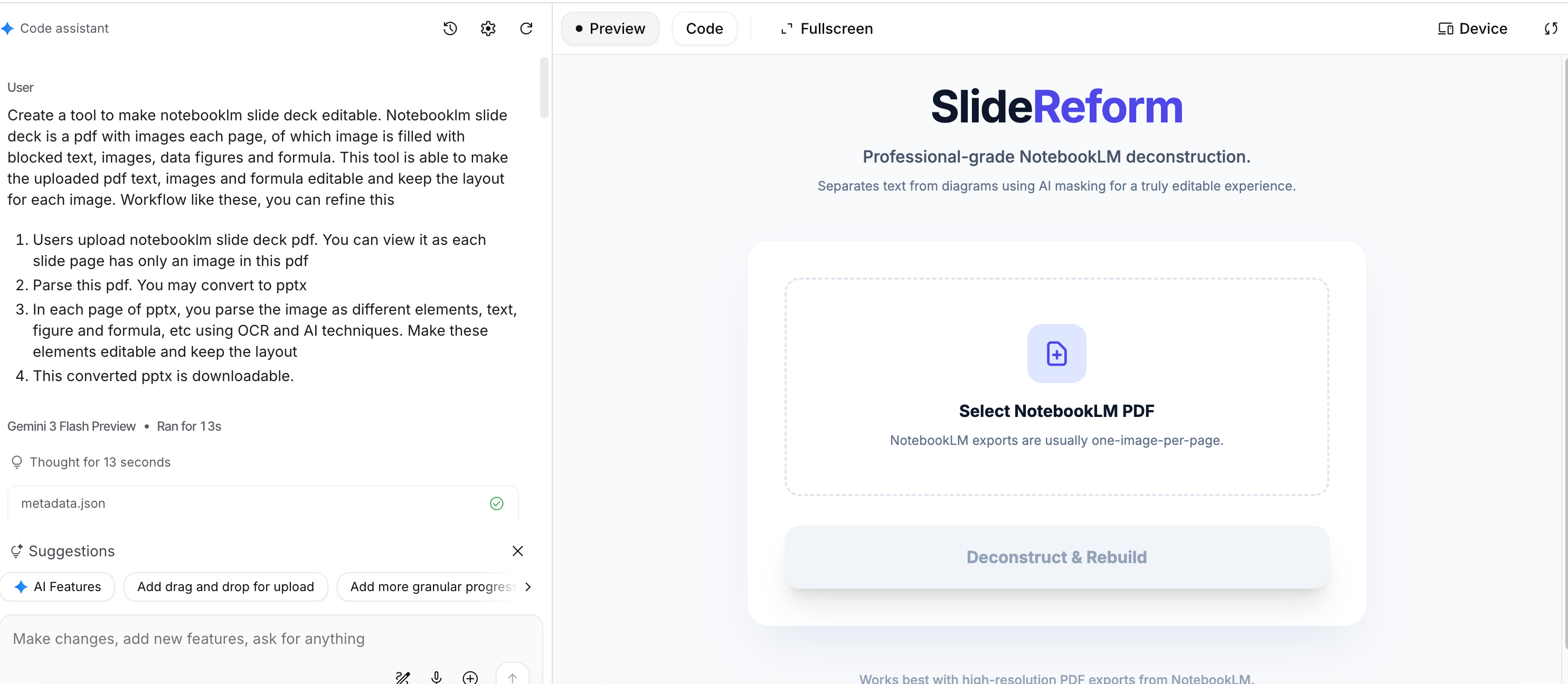
After 2-3 iterations of prompt refinement, the tool successfully decomposes text, images, and even chart elements. In the test, it extracted text and identified all major visual objects. The trade-off: font sizes and colors need manual adjustment, and element layering sometimes needs tweaking. But the hard work (decomposition) is automated mostly.
The Real Value
If you’re processing 10+ decks regularly, investing 2-3 hours in a custom tool pays off. You get:
- No monthly subscription costs
- Complete control over the parsing logic
- The ability to customize for your specific slide patterns
Which Method Should You Pick?
Use Canva if:
You want a quick solution with minimal learning curve
You don’t mind paying for occasional heavy editing
You like having visual UI feedback during extraction
Use Adobe Acrobat if:
You make small tweaks (text corrections, number updates)
You already have an Adobe subscription
You want the fastest end-to-end process
Layout preservation matters most
Build a custom tool if:
You process many decks regularly
You have specific parsing requirements
You’re comfortable with prompt engineering
Cost over time matters more than setup effort
The Bigger Picture
This problem exists because AI slide generation is optimized for output, not editability. As tools like NotebookLM mature, I’d expect builders to include “export as editable source” options—separating the visual design from the content extraction.
Until then, you have workable solutions. Canva and Acrobat handle 85-95% of real-world slides. The custom tool route is worth exploring if you’re building this into a regular workflow.
The key insight: flattened images don’t mean locked content. Vision AI has matured enough that decomposing slides back into editable elements is now practical—it just requires picking the right tool for your constraints.
In addition to this, if you require heavy modification, I suggest that you could take a look at my previous newsletter about 8 powerful plays to generate slide decks, which would give you insights to regenerate slide decks.
What’s your most common use case for edited NotebookLM slides? Let me know which method you try.